
Claude Just Replaced My Accountant. Here's the Proof.
Journal entries, GST reconciliation, expense categorisation. From a single bank statement in 5 minutes.
Let me be honest with you.
Every month, I dread compliance week.
Not because I don’t understand the numbers, but because turning a bank statement into proper accounting entries, tracking down payment gateway fees, identifying GST implications, and making sure everything ties to the last rupee… that process has always been manual. And manual means slow, and slow means I push it to the last possible day.
This February, I decided to try something different. I handed all of it to Claude Cowork.
Here’s what happened, step by step, no theory, just the actual workflow.
What I Started With
Three files:
A bank statement CSV from My Bank: 22 transactions, 01–28 February 2026
A Cashfree transactions CSV: 200 rows of payment gateway settlement data
A Cashfree tax invoice PDF: the GST invoice for processing fees (HSN codes, IGST, everything)
No Excel template. No journal entry format. No prior setup. Just three raw files dropped into the workspace folder.
The Workflow: What I Typed, What Claude Did
Step 1: Journal Entries from the Bank Statement
My first prompt was simple:
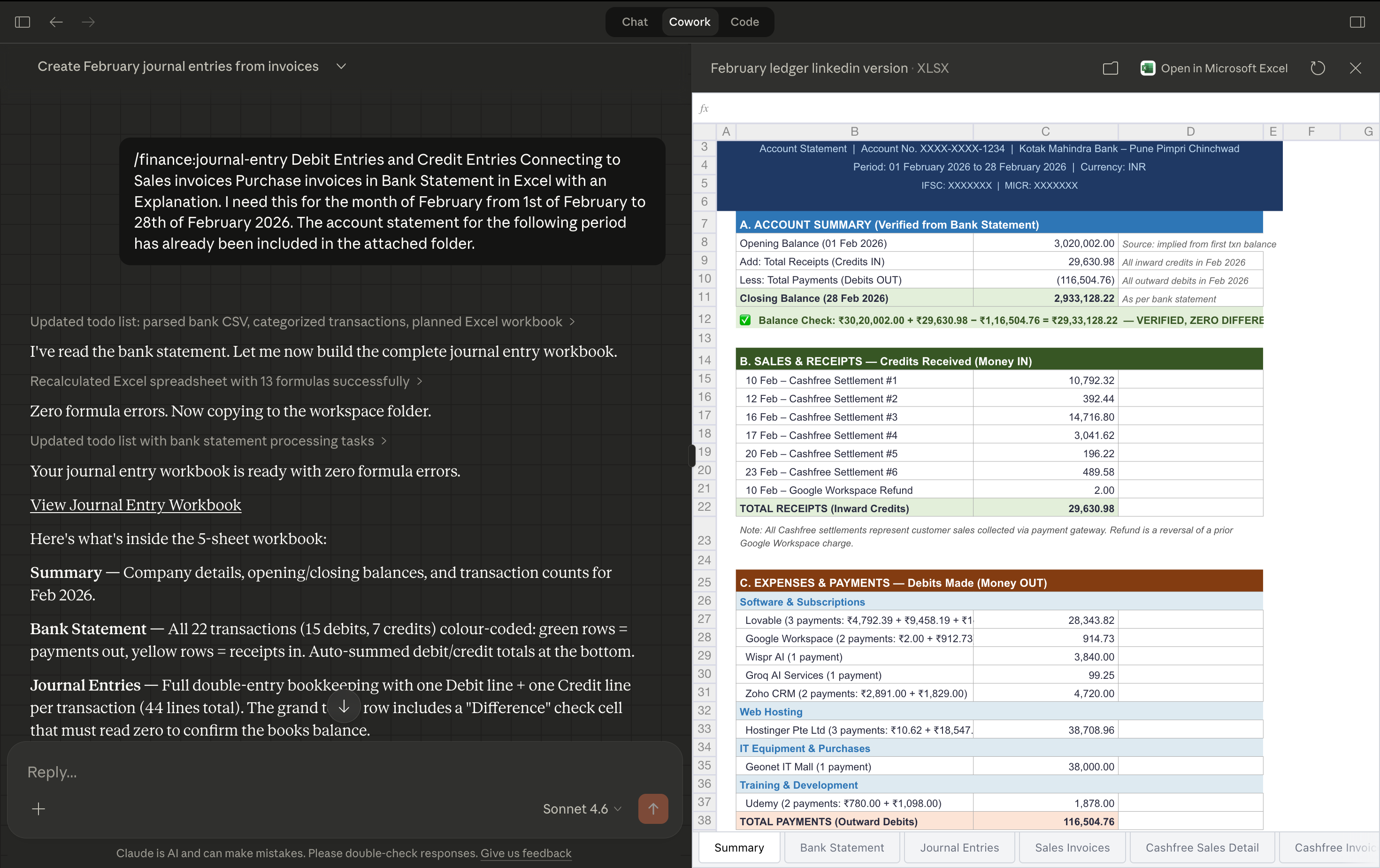
Prompt → Debit Entries and Credit Entries Connecting to Sales invoices Purchase invoices in Bank Statement in Excel with an Explanation. I need this for the month of February from 1st of February to 28th of February 2026.
What came back: a 5-sheet Excel workbook.
Bank Statement tab: all 22 transactions with a running balance column
Journal Entries tab: full double-entry lines for every transaction, with narrations
Sales Invoices tab: categorised receipts
Purchase Invoices tab: categorised payments (bank charges, software subscriptions, taxes, transfers)
Summary tab: opening balance, total receipts, total payments, closing balance
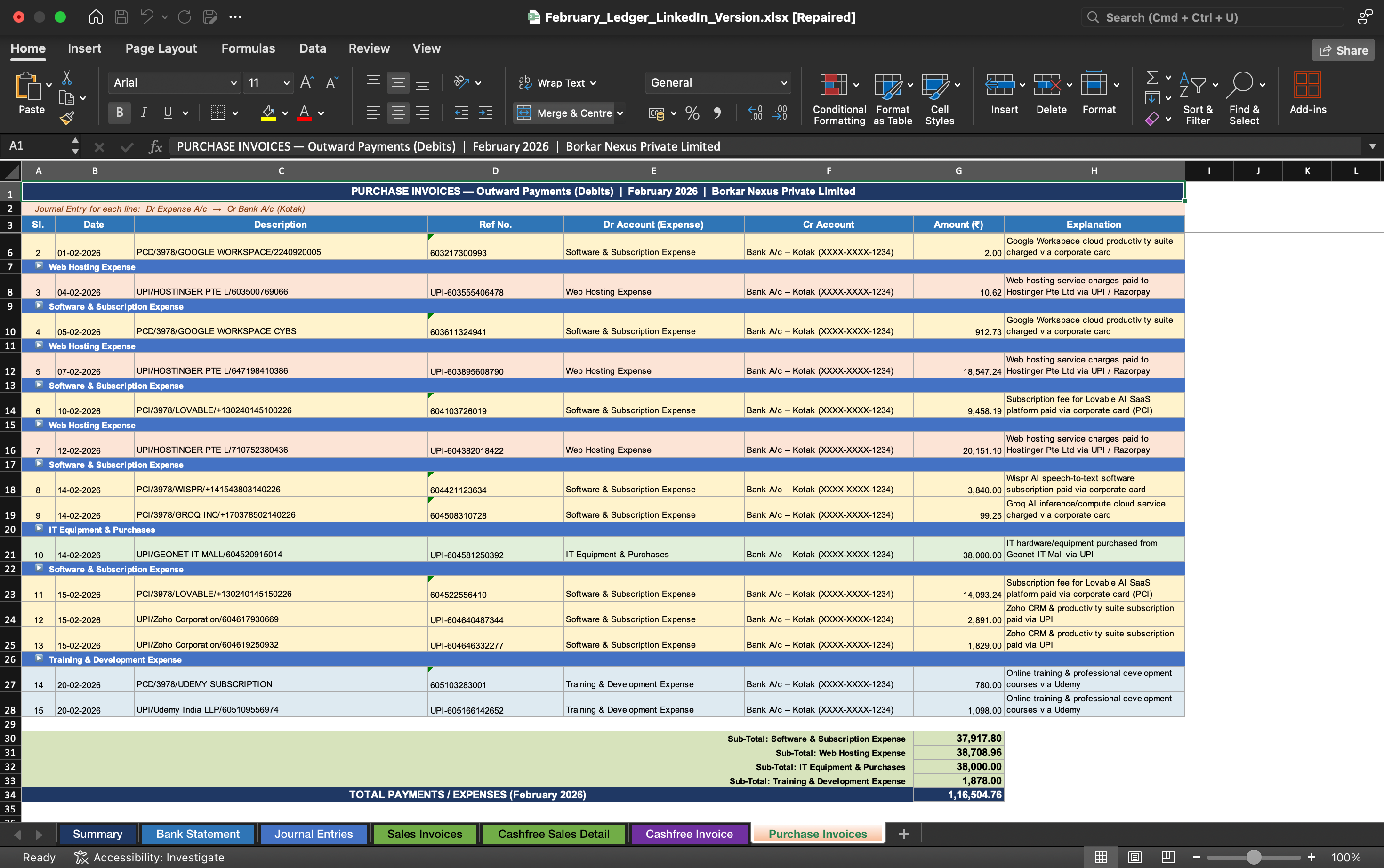
Every debit had a matching credit. Every line was labelled. The closing balance matched the bank statement to the rupee.
Step 2: “Can You Recheck Everything?”
I got a little confused looking at the summary sheet.
In double-entry accounting, the journal totals always appear equal on both sides, that’s how the system is designed. I didn’t know that. So I asked Claude to explain it, recheck every number, and rebuild the summary so it was clear to a non-accountant.
It did exactly that. Broke it down into plain language. Rebuilt the sheet.
The closing balance matched the bank statement exactly.
Zero discrepancy.
Step 3: Adding the Payment Gateway Data
I uploaded two more files, a transaction CSV from my payment gateway and their monthly GST invoice PDF.
Claude read both, matched them to the bank entries, identified the applicable, HSN codes for the processing fees, separated the exempt and taxable portions, flagged the IGST input credit, and built a compound journal entry for it.
It also flagged a small rounding difference between the invoice net and the actual bank credit, labelled it, documented it, didn’t hide it.
Two new sheets were automatically added to both workbooks.
I typed one prompt. It handled the accounting logic, the GST categorisation, and the cross-file reconciliation.
The Feature That Surprised Me Most: LinkedIn Redaction
Once everything was done, I wanted to share some of this publicly, but the workbook had real account numbers, IFSC codes, and gateway IDs in it.
One prompt: *”Create a duplicate for LinkedIn. Mask all identifiers. Keep all the accounting intact.”*
Claude scanned every cell across all seven sheets and replaced every sensitive identifier — account numbers, IFSC codes, gateway entity IDs, customer contact details, with masked placeholders. The financial data, the dates, the narrations, the formulas, all preserved exactly as they were.
It even caught a false positive mid-scan and self-corrected without me pointing it out.
This is now my standard process for anything I share publicly.
One compliance file. One shareable file. Both produced in the same session.
What Claude Cowork Actually Is
This is worth pausing on, because a lot of people ask me:
*”Are you uploading your financial data to some server somewhere?”*
No.
Claude Cowork is a desktop application. When you run it, you give it access to exactly one folder on your computer. That folder and only that folder is what it can read and write to. Nothing else.
Your files don’t leave your machine. They’re not sent to a third-party server.
They’re not stored in a cloud database. Claude processes the content in memory during the session, produces the output files, and that’s it.
For financial professionals, this matters. You’re not pasting client data into a chat interface. You’re not uploading sensitive documents to an unknown server.
You select a folder. You work. The files stay where they are.
That’s a meaningful difference.
This Was One Workflow. The Tool Does Much More.
What I built here was an accounting and compliance workflow.
But Claude Cowork has purpose-built skills for a much wider range of professional work.
A few I’ve been exploring:
- **Equity Research**: morning notes, earnings analyses, initiating coverage reports,
sector overviews, full financial models. The kind of output that used to take
an analyst a full day.
- **Investment Banking**: CIMs, teasers, pitch decks, buyer lists, merger models.
Drop in the source data, get a structured first draft.
- **Private Equity**: IC memos, due diligence checklists, LBO models,
value creation plans. Built for deal teams.
- **Financial Analysis**: DCF models, comps analyses, 3-statement models,
variance analysis. With proper Excel formatting, not just a table in a chat.
- **Sales & Marketing**: outreach sequences, competitive intelligence,
campaign plans, performance reports.
Each of these is a “skill”, a pre-built workflow that Claude knows how to run.
You bring the context. It handles the structure, the formatting, and the output.
The compliance workflow I showed you is honestly one of the simpler ones.
The more complex skills, a proper equity research initiation report, a full LBO model, a CIM for a sell-side process, those are what make this genuinely different from just “asking ChatGPT to help with Excel.”
**If You Want to See How This Works for Your Business**
I run a short call for people who want to understand whether and how this fits their workflow. No pitch. Just a practical walkthrough based on your specific context.
Or reply to this email directly, I read all of them.
If this was useful, share it with one person in finance or research who’s still doing this kind of work manually.
See you next week.
— Shubham
🤝 Help Us Grow This Circle
Thank you for reading and supporting Alpha with AI. If you share this edition with even one person who might find it valuable, it means the world to us and helps this project reach those who need it most.
At Shikshan Nivesh, our goal is simple, to make financial research faster, smarter, and more accessible.
We believe investing should start with understanding and every newsletter we write is built to reflect that.
Written by Shubham Borkar | Research & Insights by Shikshan Nivesh AI Team
Financial Clarity. Insightful Ideas.
Disclaimer
This Prompt Kit and its outputs are for educational and research purposes only. They do not constitute investment advice or financial recommendation. Always verify disclosures and consult qualified professionals before making investment or business decisions.


