


About a year and a half ago my LinkedIn posts showing AI-built investing dashboards went viral, and the comments filled up with people building their own, and within a week most of those dashboards were forgotten, mine included, because I opened each of mine twice, three times, a few times at most and then never again.
They looked good, but each one showed the numbers from the afternoon I built it, so by the next morning every price on it was a day old, and nothing on the page would change unless I sat down and built the whole thing again. The useful part of a dashboard is opening it every single day, and I was never going to open a page every day when it did not already know what had happened in the market before I got there.
One thing before anything else: we have launched greeksoup.ai, an equity research platform. It comes out of my own fundamental research, the way we actually work through a company, and it is our main project now, because the goal is to make it one of the best fundamental equity research platform there is. Most of it is free, and you are welcome to go and check it out. Its Premium plan, worth $9 a month, is complimentary for Alpha with AI paid subscribers, as our welcome to every paid reader: sign in on greeksoup.ai with the email you use for your Alpha with AI subscription. If you have been waiting for a reason to upgrade, this is your chance, and right now there is a special price to do it.
How does a Claude dashboard stay live?
On 8 October Anthropic added Dashboards to Claude. It sits under Artifacts as a template on the paid plans, and the page it builds goes back to its data every time you refresh it and tells you how long ago it last did, which is the one thing my old dashboards never had.
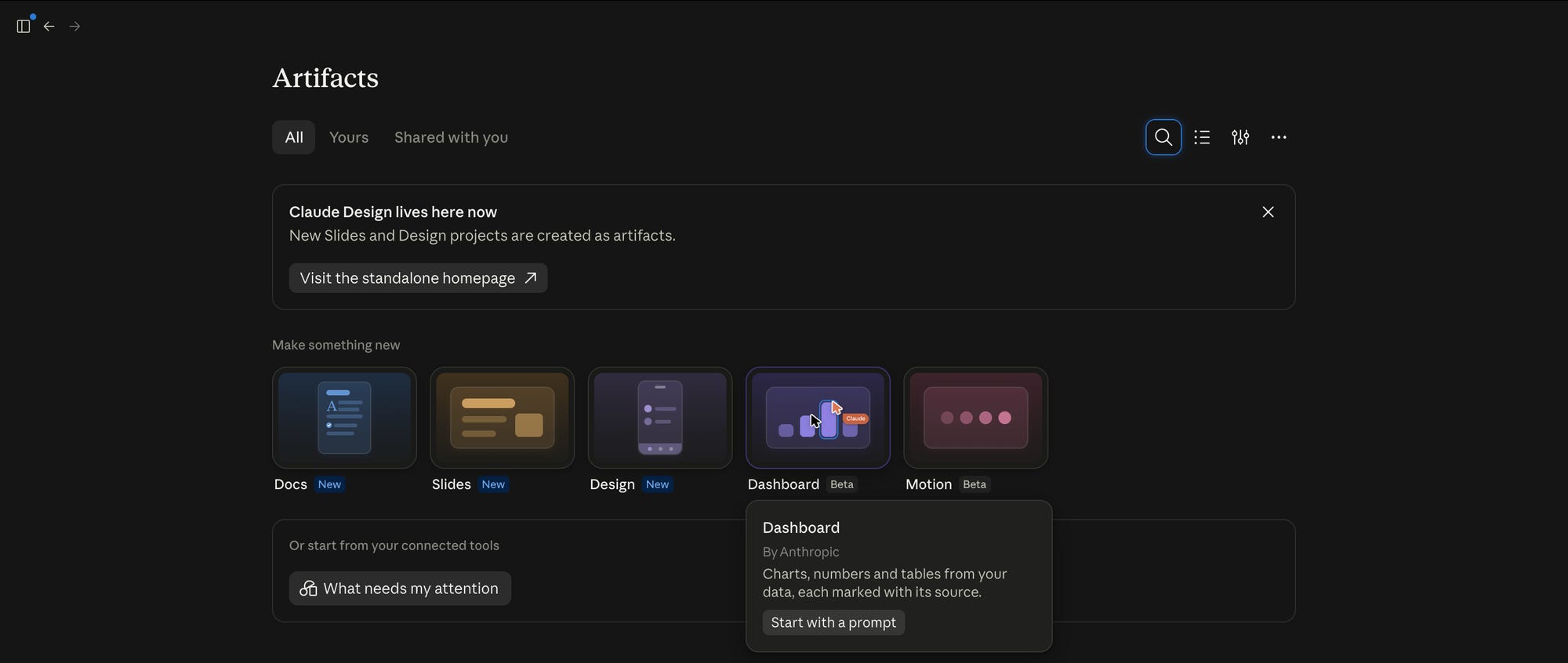
Claude’s own way of keeping it live is to connect the page straight to wherever the data sits, a company database such as Snowflake or BigQuery, or an app like Salesforce through a connector, and every chart runs its own query against that source and shows you the query behind the number. That suits a business whose numbers already live in a database. For a portfolio, check first whether your broker lets Claude connect to your account. Robinhood does: its own support page shows how to add its trading connector in the Claude desktop app, under Settings, Connectors, Add custom connector, and once it is connected Claude can read your positions and balances straight from the broker (it asks you to open a separate account for the agent along the way). I have not tried that one with a dashboard yet.
If your broker has nothing like that, the next best thing is the export, the CSV or Excel file you download from your broker’s website. That file is a copy of your portfolio on the day you downloaded it, with that day’s prices and nothing after, so by the next morning it is already a day behind, and a dashboard that reads it falls behind with it.
So what I did was leave the file as it was, upload it to Google Drive and open it as a Google Sheet, and then connect Google Sheets inside Claude, which is a connector Google itself makes and which lets Claude read the sheet and write into it. The first line of my prompt asks Claude to make the sheet live, and it does that by writing Google Finance formulas next to each symbol, for the current price, today’s change and the 52-week high and low. Those columns now update by themselves. The prices can run up to 20 minutes behind the market, which makes no difference to a page you read before the market opens.
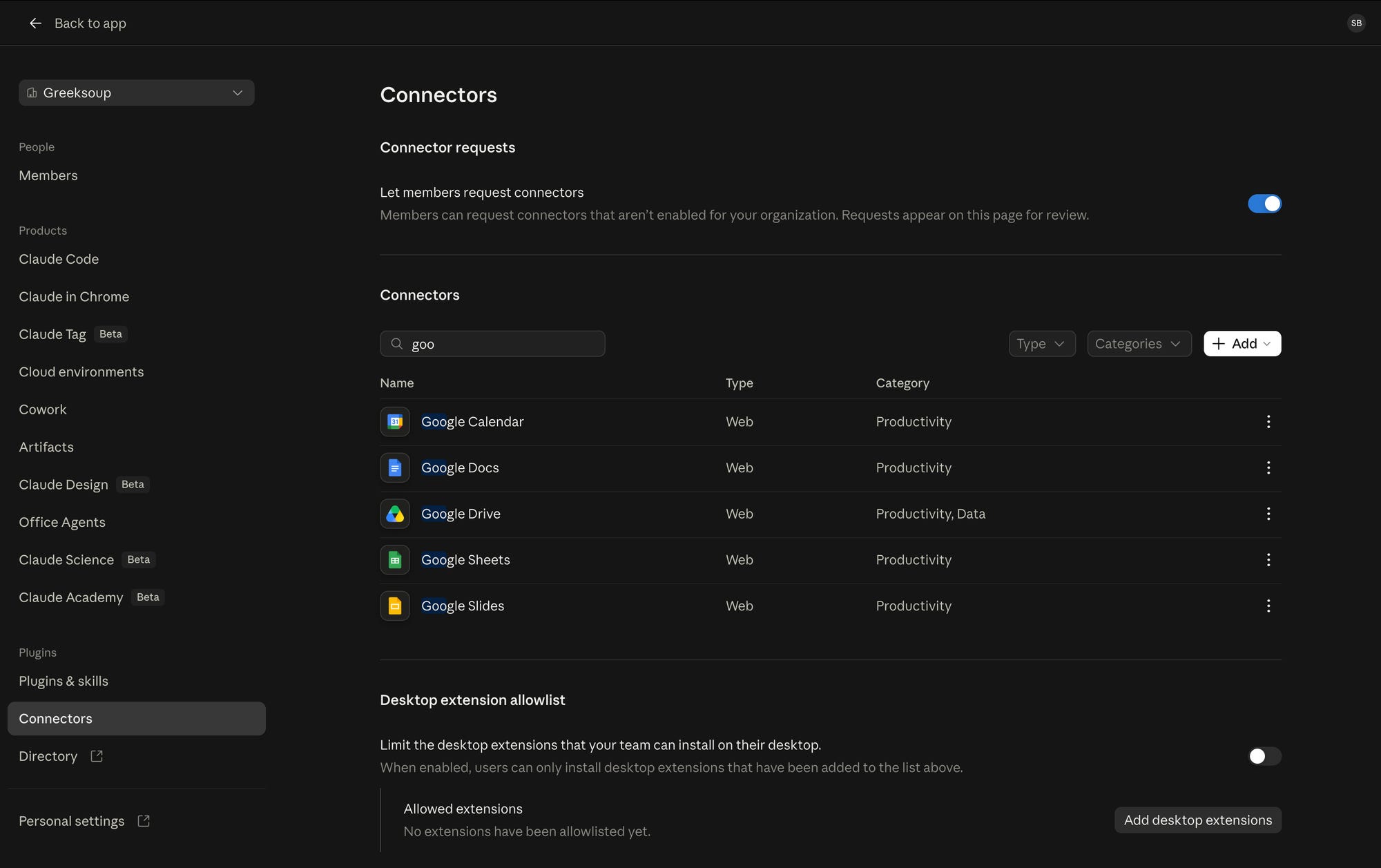
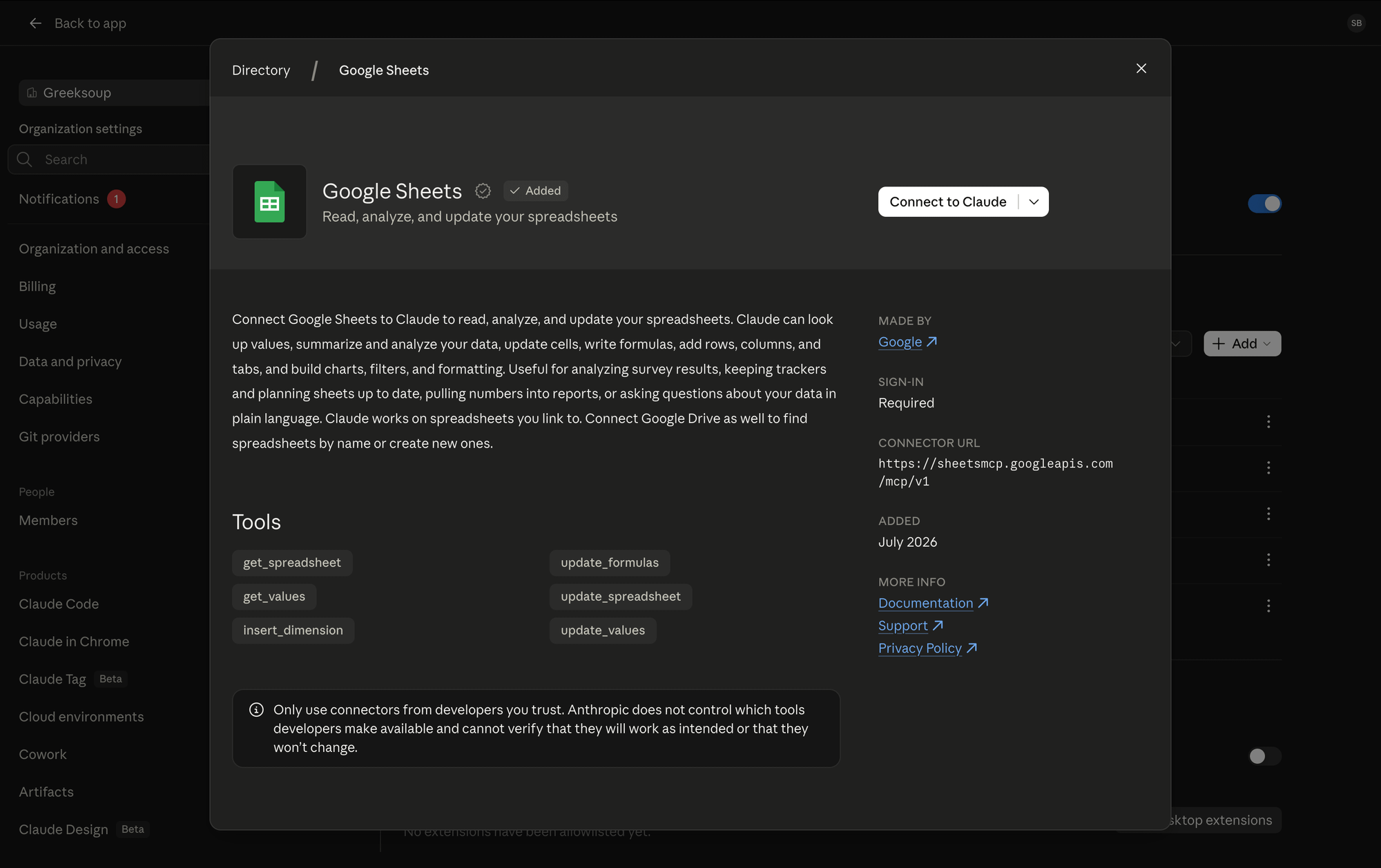
This is how the prompt starts. Put your own sheet’s name where the brackets are, and call the page whatever you like:
Use my Google Sheet "[your sheet name]". First make it live, so it updates itself every day: for each symbol, add Google Finance's current price, today's change % and the 52-week high and low. Then build my morning dashboard: what moved today and which names are closest to my add level. Call it "[your portfolio name]".The first run took Claude about six minutes. Here it is cut down to thirty seconds.
The first build, cut from about six minutes to thirty seconds: the prompt going in, Claude asking twice before it writes into the sheet, the connector check, and the finished page.
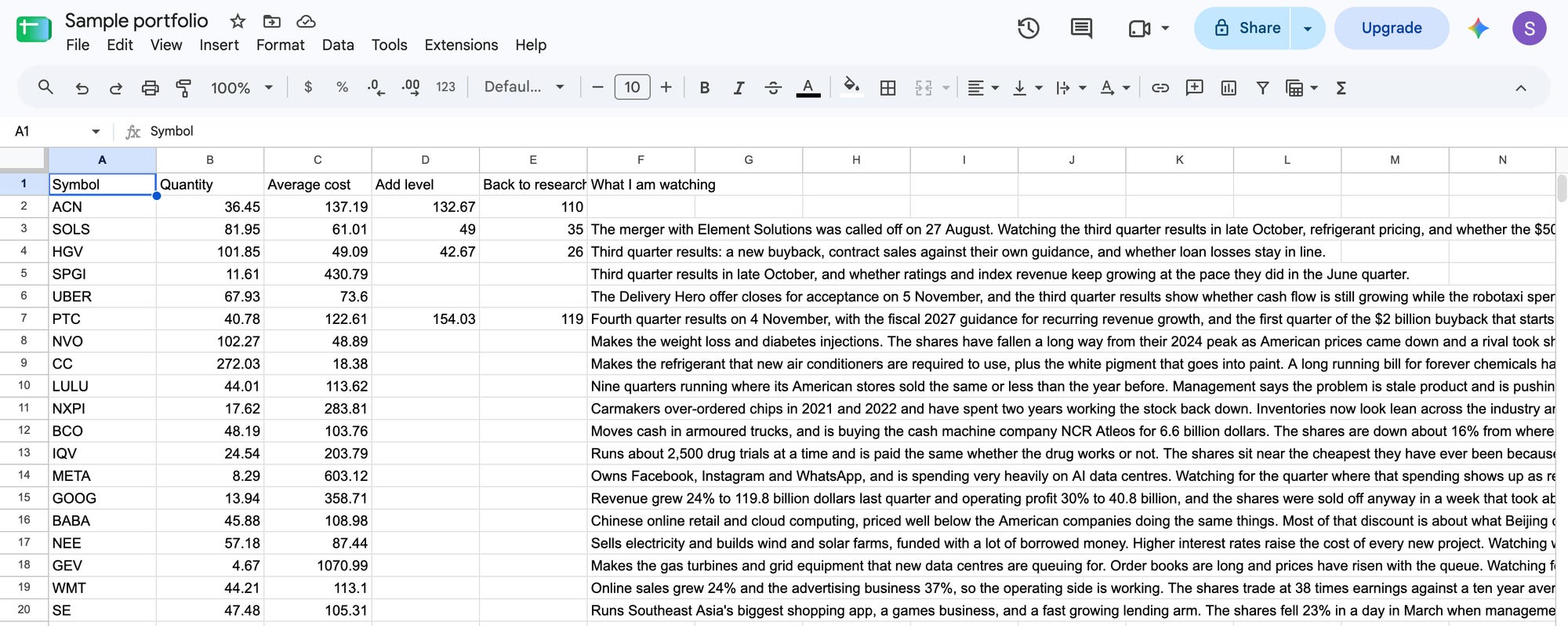
This one is a sample portfolio of US stocks, with a few columns of my own on the right: two price levels and a line on what I am watching in each name. Yours will have other columns and other names, and nobody retypes a single holding into a template, because Claude reads the sheet the way it already is and builds around it. That gives you a page whose prices move, though, and the broker app on your phone already shows you that much.
A small note, and the only sponsor here is me. I keep getting messages asking how I set up Claude Code for stock research, beyond what the editions can teach. So I am opening a small consulting program: I set your system up with you, then support sessions over the following months as your real problems show up. I am doing a lot of other things, so seats are very few. If that is you, the waitlist is on the website or reply to this email.
Adding insider trades and SEC filings
The question I actually want answered in the morning is who has been buying or selling my stocks, and the people with the best seat for that, the company’s own directors and officers, and members of Congress, all have to report their trades. Those reports go to the SEC and the House, and they sit in filings that most of us never open.
They are public, though, and there are sites built to read them. Ours come from greeksoup.ai, our own equity research site, which gives every US company it covers a page for each one: insider trades from Form 4, planned insider sales from Form 144, the newest filings, House disclosures and short interest. On the first build Claude wrote an IMPORTHTML formula for each page, which is Google Sheets’ own way of copying a table off a web page, and builds the address from the symbol in that row, so a holding you add next month gets its research without anyone touching a formula. Where greeksoup.ai has no page for a company, the sheet puts a link to that company’s filings on sec.gov instead. (If you invest in European, Australian or any other market, ask Claude where to point the sheet, and it will find the official exchange or regulator site where those filings sit.) There is one extra click the first time. Google asks before a sheet reads another website, so you open the sheet once and press Allow access. (Ours now runs on a small script instead, for the reason in next section.)
For each symbol, add the newest entry from its greeksoup.ai pages: insiders, filings, Congress, planned sales and short interest. Build each formula from the symbol cell so a new row works too. If a page has no table, show "None in the last 12 months".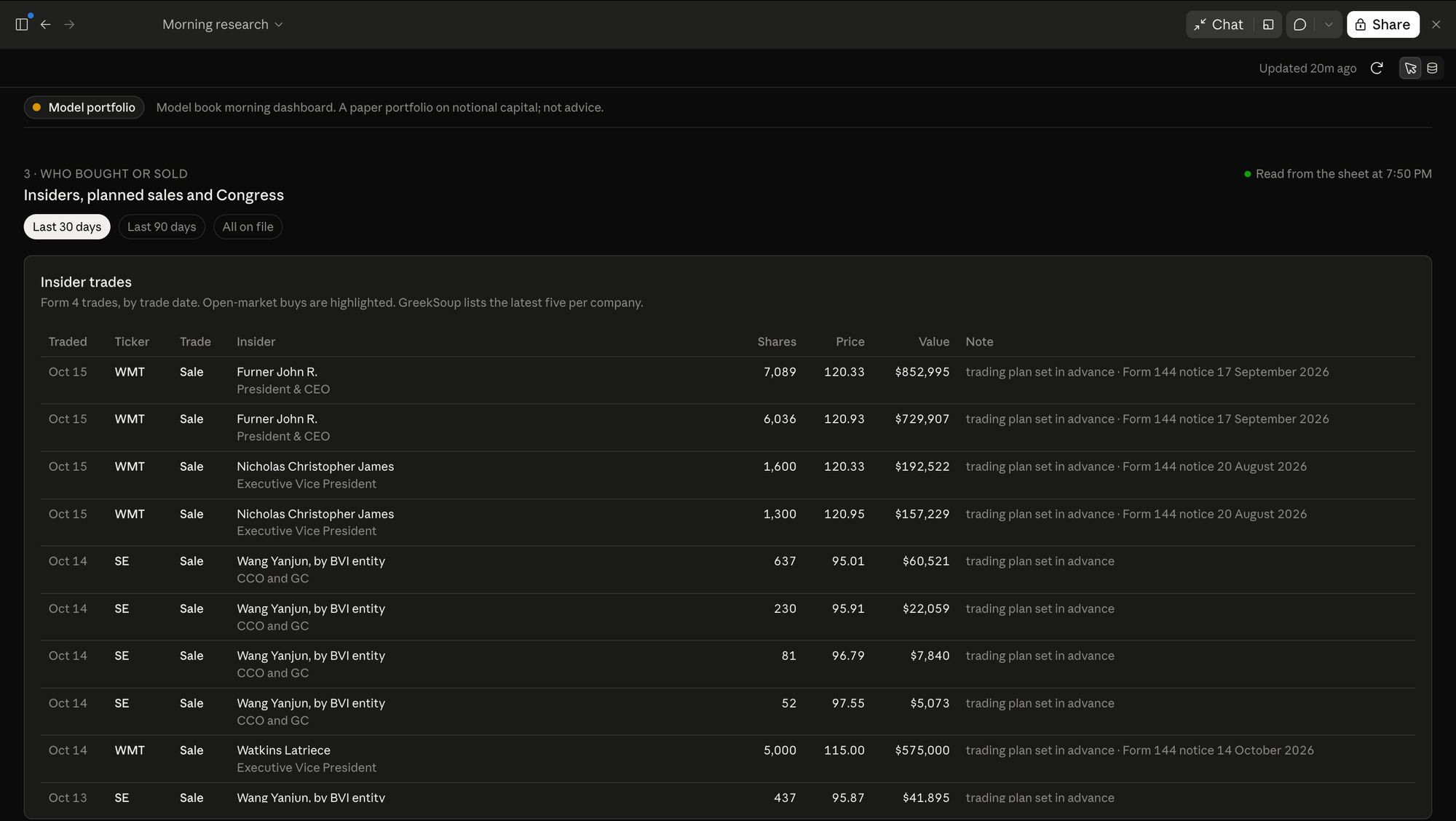
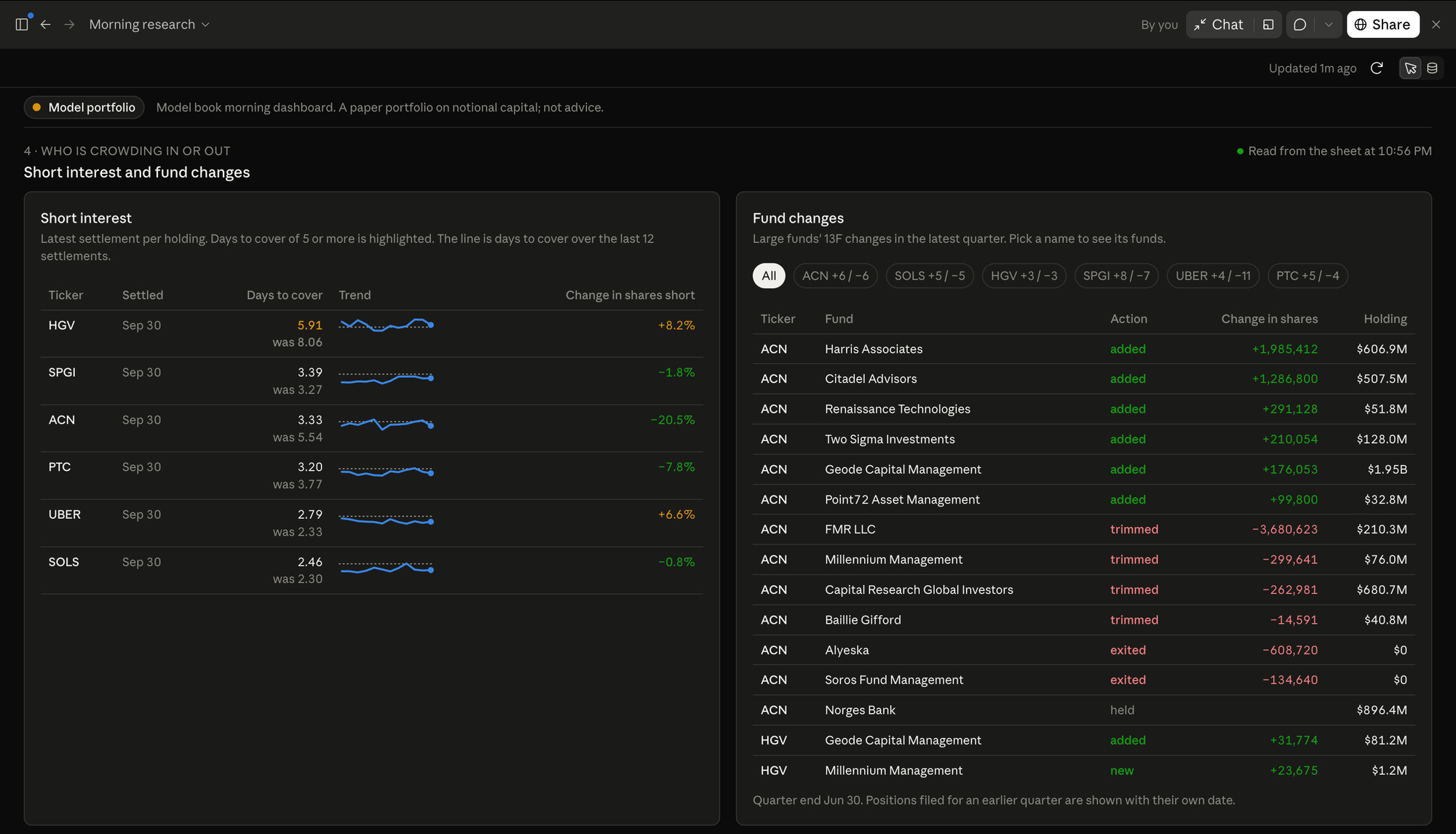
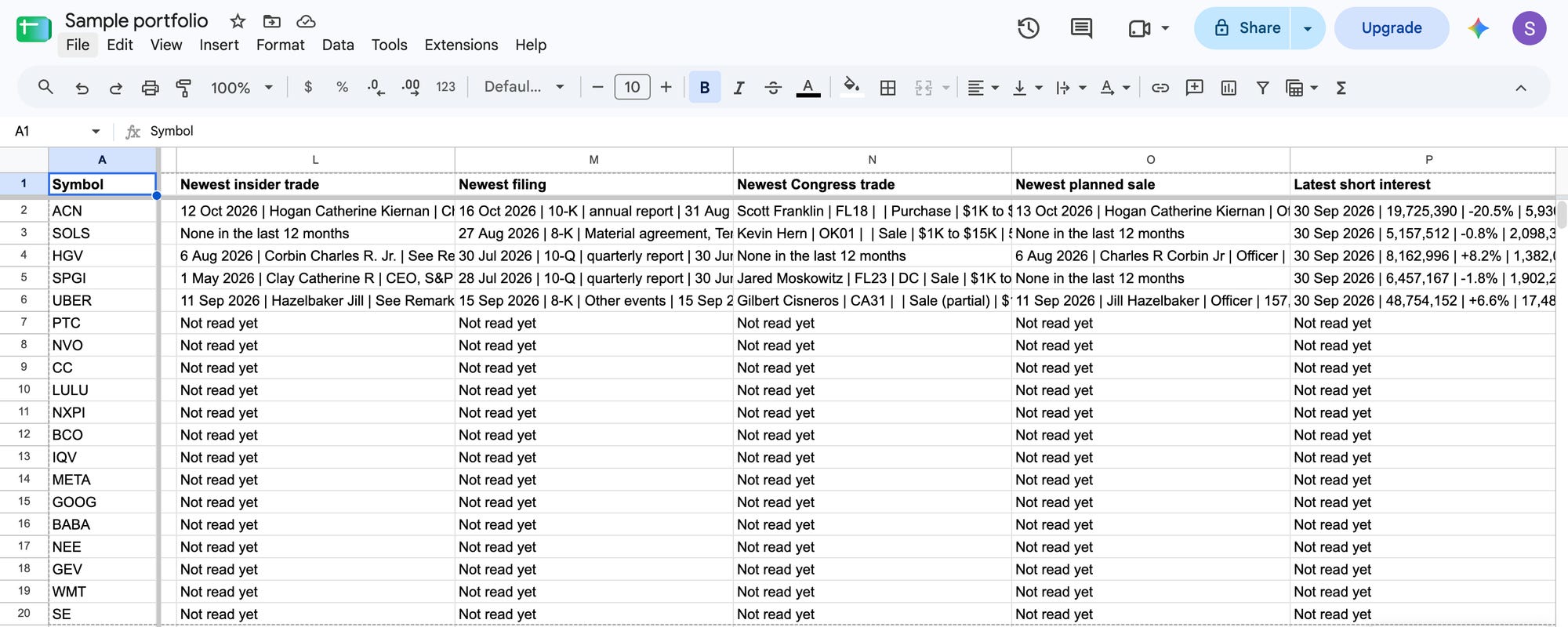
On our model portfolio page the tile for insider open-market buys says the newest was on 10 September. That one is Uber’s chief executive, Dara Khosrowshahi, buying 141,000 Uber shares in the open market for about $10.0 million, and it is the kind of line my broker app does not show me next to the position. The first time the sample page ran, though, it printed “None in the last 12 months” against some names’ insider trades, short interest and Congress trades, and the source had records for every one of them.
How to fix errors in a Claude dashboard
(Few words from me before you start on this section. Some things might be too technical and might go over your head. But remember, this is an actual process for you to learn. I could have given you a ready-made template for my dashboard, but that would not be really helpful to you. What I try to do is let you know how to fix errors, even though they are too technical and even though you don’t understand them. You just need to figure out a way to fix this error by talking to Claude in a natural language.)
Three things were wrong on that first page, and you will probably meet the same three on yours, whichever site you point it at.
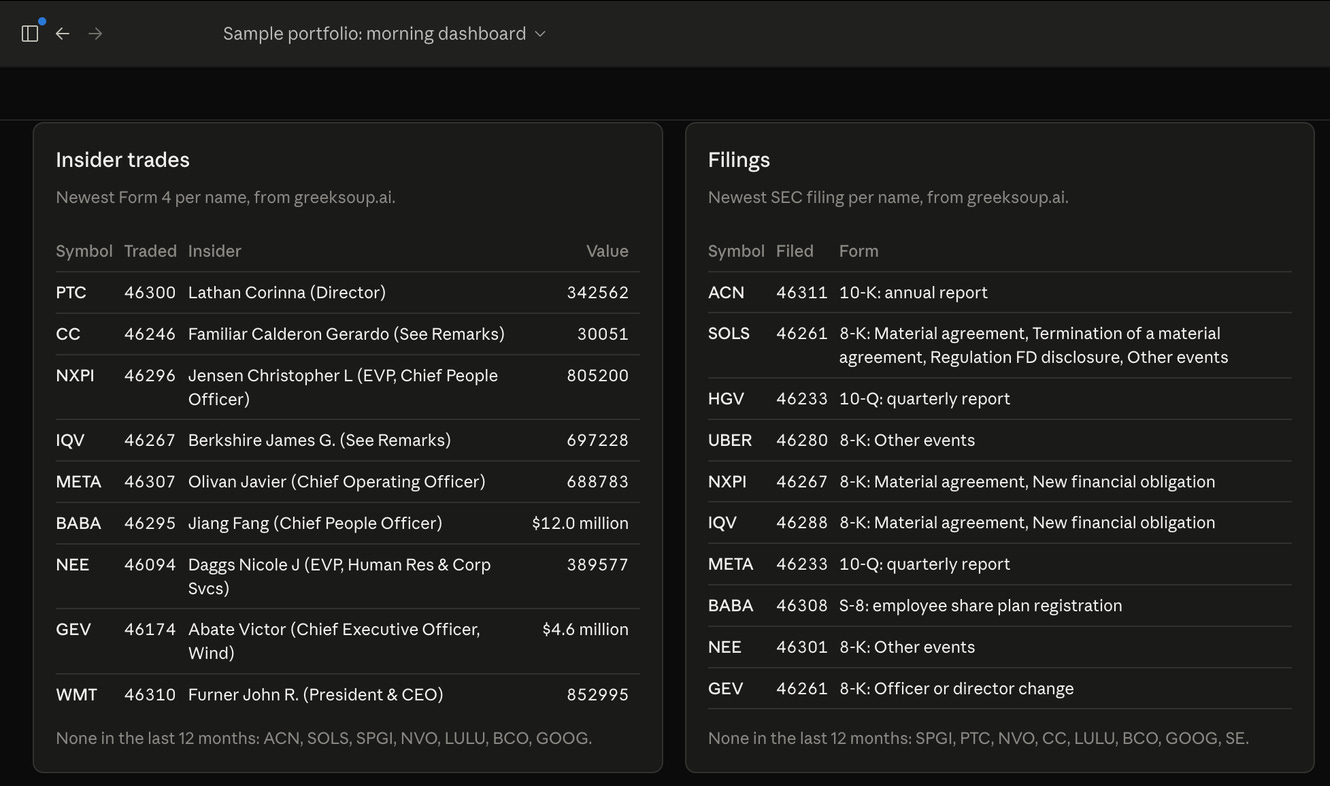
The dates came through as numbers like 46300. Google Sheets keeps every date underneath as a count of days, and when a formula copies a date off a web page it sometimes hands over that count and not the date. The dollar values came in two styles in the same column, 342562 in one row and $12.0 million a few rows down, which makes the column hard to read at a glance.
The third one was my own doing. I had told Claude to write “None in the last 12 months” whenever a page had no table, and a page that fails to load has no table either, so the sheet could not tell a company with no insider trades from a page it never managed to read. That is the one that matters, because “none” against insider trades says nobody inside the company bought or sold, and you would believe it.
So the next message to Claude listed all three, in plain words:
Three fixes, in the sheet and the dashboard:
1. Dates show as numbers like 46240. Show every date as a date, for example 16 Oct 2026.
2. Dollar values come in two styles (970408 and $2.0 million). Show them all one way, for example $970K and $2.0M.
3. "None in the last 12 months" is wrong for some names: ACN has insider trades, HGV has short interest and UBER has Congress trades on greeksoup.ai, so those cells failed to load. Only say "None in the last 12 months" when the page loaded and has no table. If the fetch failed or is still loading, show "Not loaded yet" and list those names separately, so I never mistake a failed fetch for an empty record.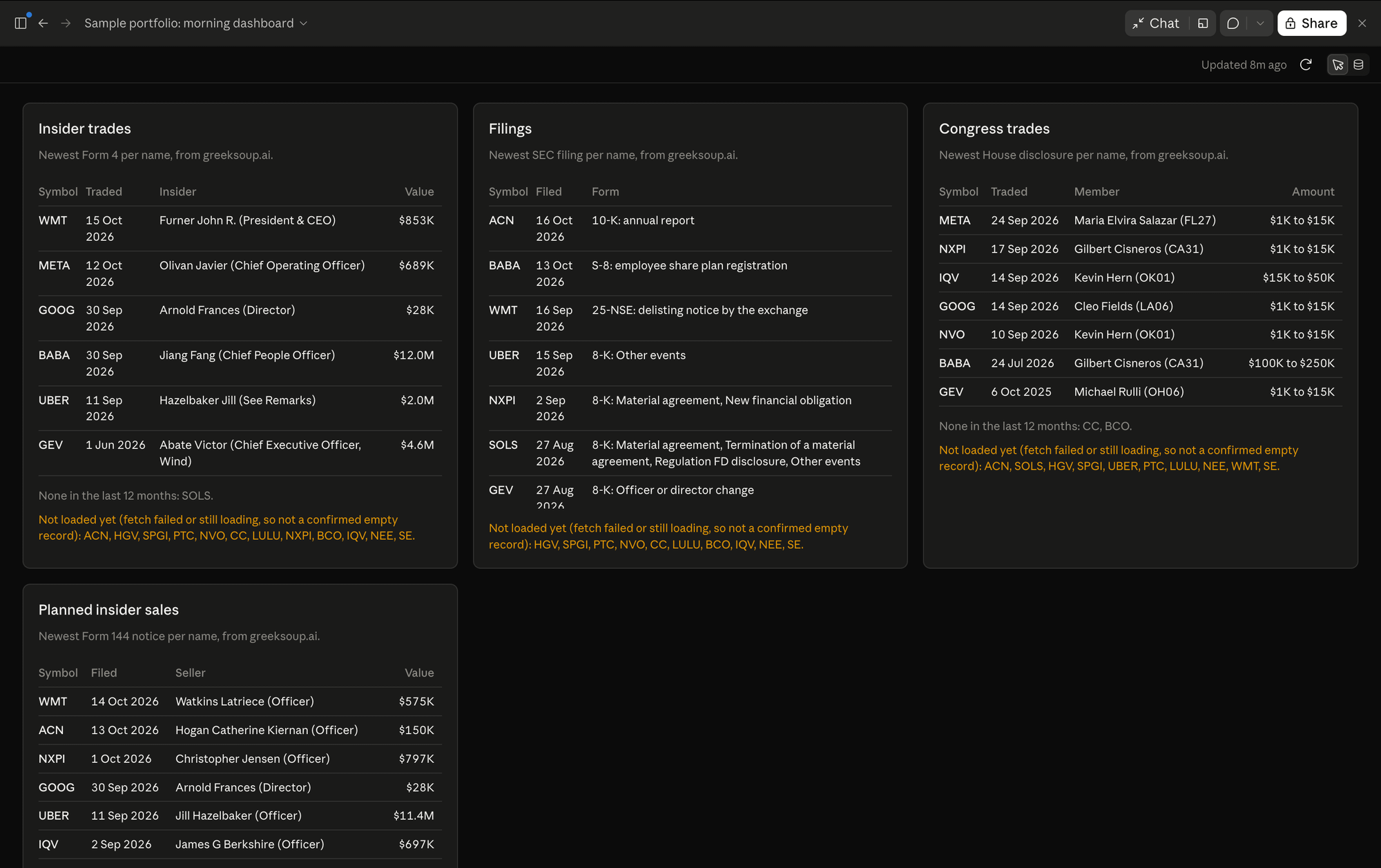
Some of that orange came from Google and not from the source. Google Sheets only runs so many of these web-page formulas at a time, counted across every sheet you own, and past that it leaves them on “Loading...” with a note that says so: “Loading data may take a while because of the large number of requests.” Ours had grown to about 115 after the fix, because Claude had added a check of its own on every page, so the next message asked it to read each page once.
That was not enough. The sheet still flickered, full one minute and empty the next, because Google redoes these formulas every so often and they sit on “Loading...” until it gets to them. So we stopped using formulas for the research. Claude wrote a small Google Apps Script, the scripting tool built into Google Sheets, that reads five stocks at a time on an hourly timer and writes what it finds into the sheet as plain text. The timer runs on Google’s own servers, so it carries on with your computer switched off, and a plain value stays where it is until the next good read, so the page is never blank. The first run filled the first five stocks straight away, including Accenture’s insider trades, Hilton Grand Vacations’ short interest and Uber’s Congress trades, the three that had read “none” on the first morning.
You will meet errors like these on your own page, whatever source you use. Write down what looks wrong, tell Claude in one plain message what you see and what you want instead, and look at the page again the next morning.
Everything from here is for paid members: our live dashboards, video demo, the full prompt, every click from the broker export to the finished page, what each part of the page shows, and what to ask for next once the basics run.
How to build a Claude dashboard, step by step
This is the whole build on the sample portfolio, in the order I did it. Most of it is setup you do once, and after that the only thing you do in the morning is open the page.
Download your portfolio from your broker as a CSV or Excel file. If you cannot find where your broker keeps it, ask Claude.
Upload the file to Google Drive and open it with Google Sheets. Keep the sheet’s name handy, because the prompt asks for it. Add any columns of your own you want on the page, such as the price you would add more at, or a line on what you are watching.