



I gave up on Claude Code twenty times.
Maybe more. I lost count somewhere around attempt fifteen.
Every time went the same way. I’d read a tweet about someone doing something incredible with it, feel the fear of missing out kick in, open a terminal window on my Mac, type a few commands I barely understood, get a cryptic error, close the terminal, and tell myself the same lie: “I’m a finance guy. This isn’t for me. I’ll stick with the chat window.”
Then last month, something broke that pattern.
Not because Claude Code got easier. It didn’t. The terminal still looks exactly as scary as it did two years ago.
What changed was the reason to stay.
I found a way to give Claude Code a brain, a real, grounded, zero-hallucination research brain. Every annual report I own. Every earnings transcript I’ve downloaded. Every consultancy PDF sitting in my Downloads folder. All of it, indexed, cited, queryable, from one window.
Attempt twenty-one stuck.
This is what I wish someone had told me before attempt one.
Before we go further — a confession, and a reframe
If you’ve been following Alpha with AI for a while, you know I’ve spent months teaching Claude Cowork. The interface. The projects. The skills library. The $100K Research Framework I published earlier this month runs entirely on Cowork.
I’m not walking any of that back. Cowork is the right tool for most of what most analysts do, most of the time.
But I owe you the truth about something.
There is a layer underneath Cowork. It’s called Claude Code. And once you cross over, you don’t go back for the heavy lifting.
Think of it like this.
Cowork is your Bloomberg terminal interface: visual, guided, polished, curated. Everything you need is a click away. No learning curve beyond knowing where to click.
Claude Code is the raw data feed: direct, unfiltered, infinitely configurable. Every senior trader who’s spent ten years on a desk eventually memorises the keyboard shortcuts and stops using the mouse. It’s not that the mouse is bad. It’s that the shortcuts are faster, deeper, and do things the mouse can’t.
Same thing here. Cowork got me in the door. Claude Code is what I reach for when I want to do things Cowork can’t do.
Today’s story is about one of those things.
What I was chasing, and why I kept quitting
Here’s the problem I’ve been trying to solve for about a year.
My research library is enormous. Annual reports going back five years for every company I cover. Earnings call transcripts. Sector reports from McKinsey, BCG, Deloitte, and every Indian consultancy worth reading. Regulatory filings. Trade body publications. My own notes and memos. Thousands of pages across hundreds of PDFs.
All of it useless when I actually need to answer a question.
Because when I want to check something, “has management mentioned China+1 in the last four concalls?” — I can’t just ask. I have to open each PDF, use Ctrl-F, scroll through, read context, copy-paste into a doc. Repeat for each source. Forty minutes later I have an answer.
“But wait, I already have Drive connected to Claude and Notion connected to ChatGPT.” I hear you. So do I, and I use both. But those connectors blend your files with the model’s training data, and they pick the top few matching chunks rather than read everything. That’s fine for finding a slide; it’s the reason I lost months of research in early 2024 when I trusted AI outputs I couldn’t verify. NotebookLM solved that for me, if the answer isn’t in your sources, it says so, and every claim comes with a citation you can click through to the exact passage. That story sits at the heart of the industry research playbook.
But here’s where I stayed stuck for a year.
NotebookLM is a website. Every query lives in my browser. I can’t reach it from other tools. I can’t chain it into a workflow. I can’t hand it to my research process, it’s a separate app I have to remember to open. Even once I was using NotebookLM religiously, I was the bridge between it and everything else. Manually.
What I wanted was for my NotebookLM notebook to be a service. Something Claude could call on its own. Something that sat behind everything else I was building.
That’s exactly what Claude Code + NotebookLM does.
The moment it clicked
Last week I found a skill on GitHub called notebooklm-py. Unofficial, built by a developer named Teng Lin. 10,400 stars. The description was simple: it lets AI agents like Claude Code talk directly to your NotebookLM notebooks.
I installed it on my Mac.
Fifteen minutes later, I was asking Claude Code a question about the specialty chemicals industry, and Claude was reaching into my NotebookLM notebook, querying only the sources I’d approved, and answering me with citations pulled from my own library.
No copy-paste. No browser tab. No Ctrl-F.
Just a conversation with a research assistant who had already read everything in my folder.
That’s the moment I should have had two years ago.
Okay, but isn’t Claude Code for coders?
This is where I stopped the first twenty times, so let’s handle it head-on.
Claude Code looks like it’s for coders. The screenshots you’ve seen online usually show a terminal window with green text and a lot of what looks like magic. That’s intimidating. It intimidated me for two years.
Here’s what I learned on attempt twenty-one:
Claude Code is not a coding tool. It is Claude, with hands.It’s the same Claude you talk to in the chat window. Same voice, same intelligence. The only difference is that this version of Claude can read files on your computer, run commands on your behalf, and install skills that extend what it can do. The “coding” part is just one of the many things it can do and unless you ask it to write code, it won’t.
Better still, you don’t have to live in a terminal.
Claude Code runs in three places:
Inside Cursor: an app that looks and feels like a chat window, with the power of Claude Code underneath. This is what I use, and it’s what I’ll walk you through below. Cursor is “VS Code on steroids” if that means anything to you. If it doesn’t, forget the phrase, Cursor is just a clean, quiet app where you type questions to Claude and watch it work.
Inside the Claude desktop app: the same Claude app you already use. Claude Code lives inside it now as a feature. No separate tool to install. If you want the softest possible entry, start here.
In your terminal: the hardcore option. You don’t need this. I barely use it.
Two paths, one destination. Pick whichever one looks less scary.
The install — plain English, nothing hidden
Before we start, one thing you need to internalise. It’ll change the whole experience.
If anything in this section throws an error, don’t think. Don’t Google. Don’t panic. Copy the error message, paste it into Claude (the regular chat window you already know), and tell it: “I’m installing Claude Code and ran into this. Help me fix it.” Nine times out of ten, Claude will give you the exact next command to run. If you want to go nuclear, paste this entire section of the newsletter into Claude along with the error, it’ll know exactly where you are in the process and what to try.
You’re not debugging as a programmer. You’re handing an error back to Claude and asking for the fix. That’s it. Keep that in your back pocket, and the fear of the terminal disappears.
Two reference pages worth bookmarking, if you want to go deeper, or if Claude needs context to help you debug, feed it these:
Official Claude Code setup docs: code.claude.com/docs/en/setup
The NotebookLM skill GitHub page: github.com/teng-lin/notebooklm-py
Now, pick your path before we start.
Step 1: Pick your path
There are two ways to get Claude Code running on your machine. Pick the one that fits you. You don’t do both.
Path A: Claude desktop app (easiest, no terminal). If you already have the Claude desktop app installed, you’re most of the way there. Claude Code is built into the desktop app as a separate section in the sidebar. No terminal, no install commands, no config files. If you don’t have the app yet, download it from claude.ai/download, install it, open it, find the Claude Code section, sign in with your Claude Pro ($20/month) or Max subscription. Done.
If you pick Path A, skip straight to Step 4. You can ignore Steps 2 and 3.
Path B: Terminal + Cursor (what I use). More power, slightly more setup. Claude Code runs as its own tool on your computer, and you talk to it inside Cursor, a clean workspace that feels like a chat window with Claude’s full agentic capability behind it. This is the path I personally use for serious research work.
If you pick Path B, continue to Step 2.
Step 2: (Path B only) Install Claude Code
No Node.js. No app downloads. One command in your terminal. Anthropic now ships a native installer that handles everything in one step.

On Mac, open Terminal (hit Cmd + Space, type terminal, press Enter), paste this, press Enter:
curl -fsSL https://claude.ai/install.sh | bashOn Windows, open PowerShell (hit the Windows key, type powershell, press Enter), paste this, press Enter:
irm https://claude.ai/install.ps1 | iexPlain English for both: “Go to Anthropic’s website, download the Claude Code installer, and run it.”
Windows users: if the installer tells you it needs Git for Windows, let it guide you through that or download it yourself from git-scm.com before running the command above. Git for Windows is a one-time install; Claude Code uses it under the hood. Leave all the default settings when you install it.
When the installer finishes, close your terminal window and open a new one. This matters, your computer needs a fresh terminal session to recognise that Claude Code is now installed.
Then sign in. Type this into your fresh terminal and press Enter:
claudePlain English: “Start Claude Code.”
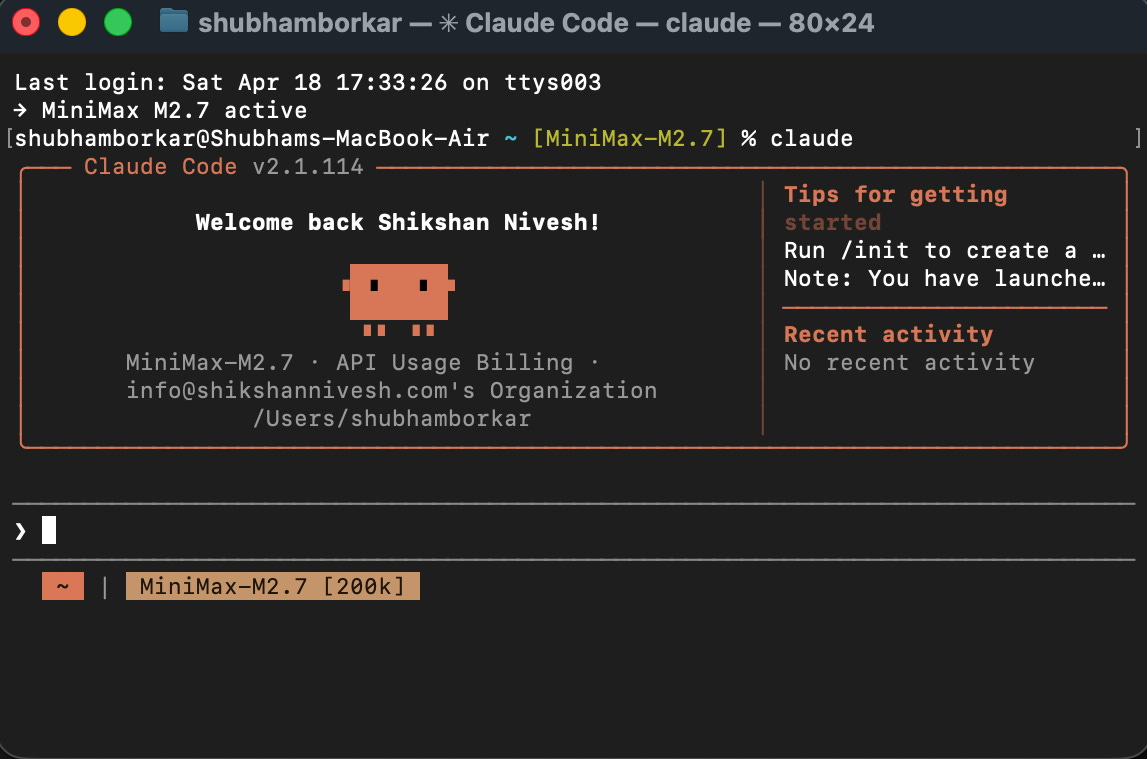
Now it may ask you to log in via Anthropic API or OAuth your Claude subscription. You can choose your Claude subscription.
A browser tab opens and asks you to sign in. Use your Claude Pro ($20/month) or Max subscription. Either works. Done.
Step 3: (Path B only) Install Cursor
Download Cursor from cursor.com. Install it like any other app. Open it. It looks like a clean code editor, don’t let that scare you; you won’t be coding. It has a chat sidebar where you talk to Claude Code. That’s the window you’ll live in from here on.